
Small PDF changes often do not justify rebuilding the source document. A capable editor lets you add a note, insert an image, highlight a passage, cover outdated content, or reorganize pages directly on a visual preview.
Why This Task Matters
A reliable workflow starts with the purpose of the final document, not with the largest or most aggressive setting.
This is useful for correcting labels, preparing teaching material, completing review copies, adding signatures as images, and arranging scanned documents. It is important to distinguish added edits from changing original PDF text. Many browser editors preserve the original page and place new objects on top, which is reliable for annotation and visual correction but not the same as reflowing a Word document.
How the Workflow Works
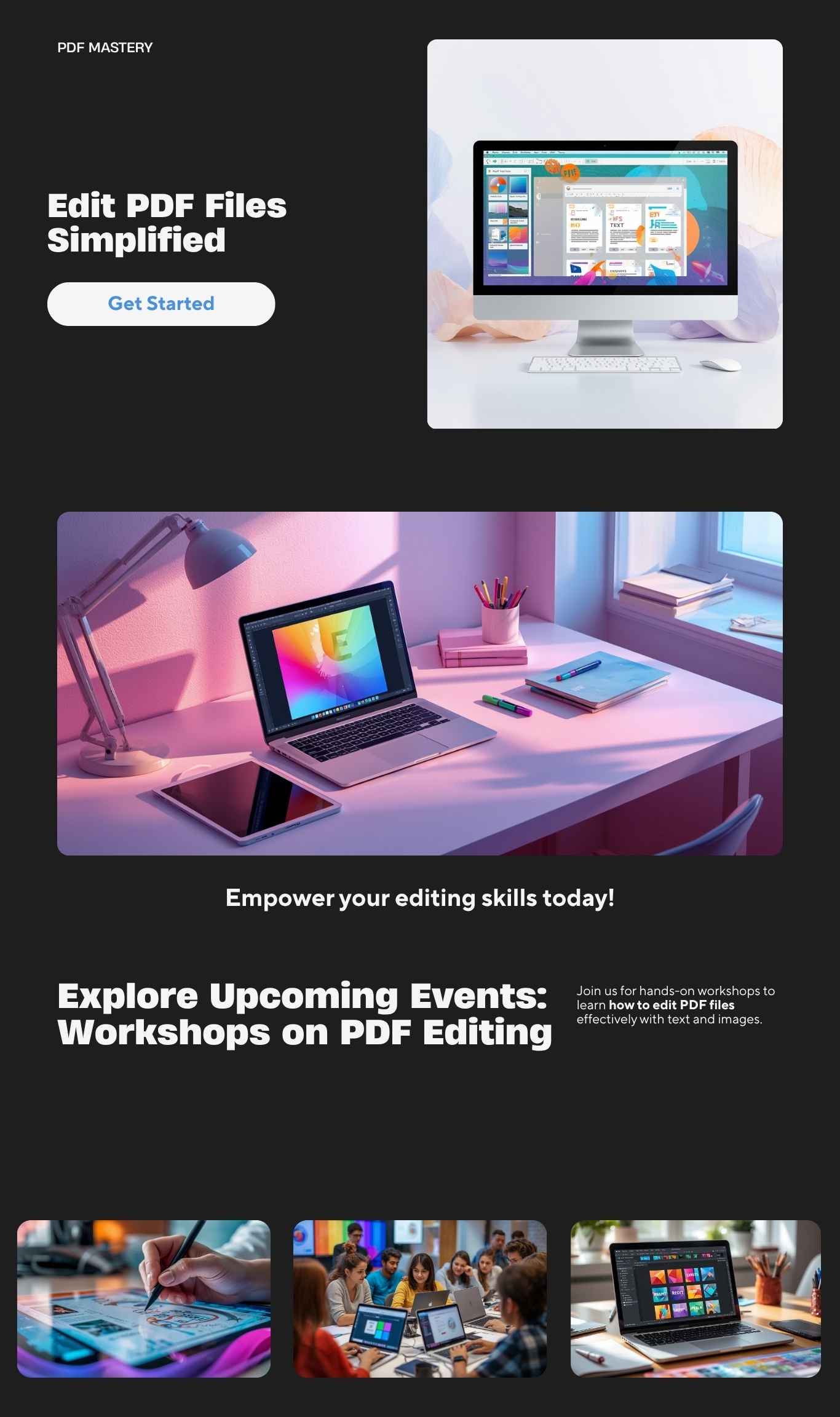
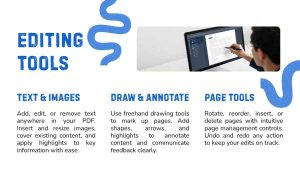
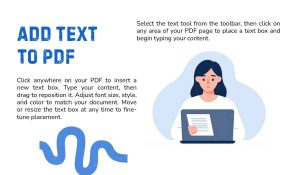
A visual editor can load several PDFs, switch between documents and pages, and show accurate previews. Users may add regular or bold Unicode text, place PNG or JPG images, draw freehand vectors, create translucent highlights, or add opaque white covers. Added objects can be selected, moved, resized, and deleted. Undo and redo history protects against mistakes. Page tools can rotate, reorder, or remove pages while keeping placed edits aligned. Export can preserve existing selectable text, vectors, and embedded images.
Choosing the Right Settings
Use text objects for additions rather than trying to match and replace complex original paragraphs. Use highlights for review and white covers only when the goal is visual concealment; a white rectangle is not secure redaction because underlying content may still exist in the PDF. For sensitive removal, use a dedicated redaction workflow. Keep image resolution reasonable so the edited PDF does not become unnecessarily large.
Privacy, Performance, and Realistic Limits
That reduces unnecessary storage and transfer, although users should still work on a trusted device and understand that large documents are limited by available memory and processing power.
Practical note: Browser-based tools may avoid artificial file-count limits, but real capacity still depends on file complexity, available memory, device performance, and the quality settings selected.
Best Practices for Better Results
- Work on a copy of the original.
- Use undo checkpoints after major page changes.
- Zoom in before aligning text or images.
- Do not treat a white cover as secure redaction.
- Review rotated pages because coordinate changes can affect placement.

Frequently Asked Questions
Can original PDF text be rewritten like Word text?
Are edits preserved on rotated pages?
A well-designed editor maps objects correctly across 0, 90, 180, and 270 degree rotations.
Can multiple edited PDFs be downloaded together?
Yes. One result can download directly, while several outputs can be packaged in a ZIP.
Final Thoughts
PDF editing is most effective for targeted visual changes. Use the right tool for the job, preserve a master copy, and inspect the exported PDF in a normal viewer before relying on it.
The most dependable approach is to work from a clean source, test the settings on a small sample, and review the exported file in the software your audience is likely to use. That simple habit catches layout errors, missing pages, unreadable text, and oversized outputs before they become someone else’s problem.