
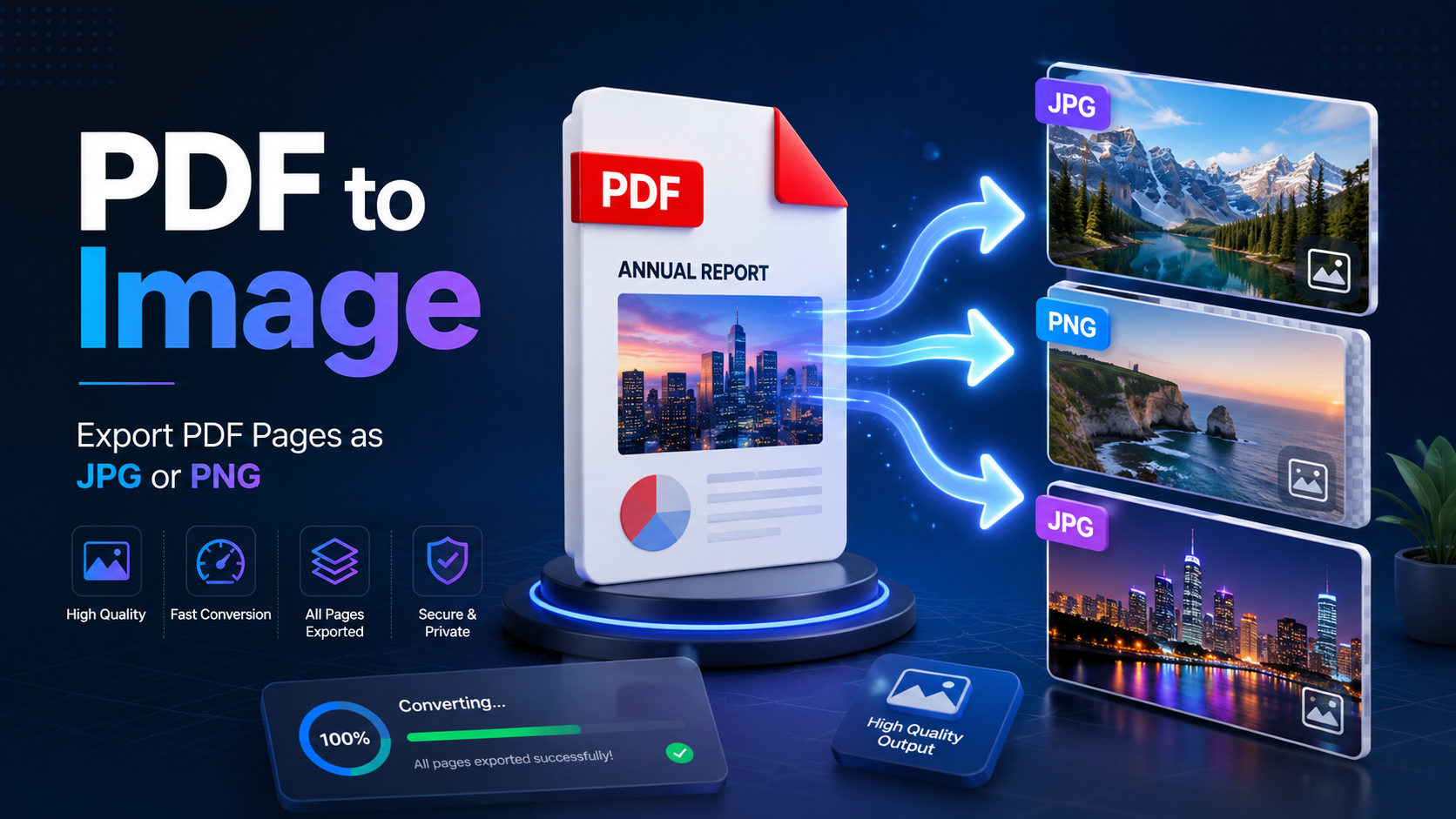
A PDF to image converter turns each selected page into a standalone picture, making the content easier to preview, publish, crop, or reuse.
Why This Task Matters
The practical value becomes clearer when the job is viewed from the reader’s side.
This conversion is useful when a designer needs a page preview, a teacher wants to place a worksheet page in a slide, or a support team needs to share one specific page rather than an entire manual. It also helps websites create thumbnails and galleries. The key is choosing the right image format and resolution instead of simply exporting at the largest possible setting.
How the Workflow Works
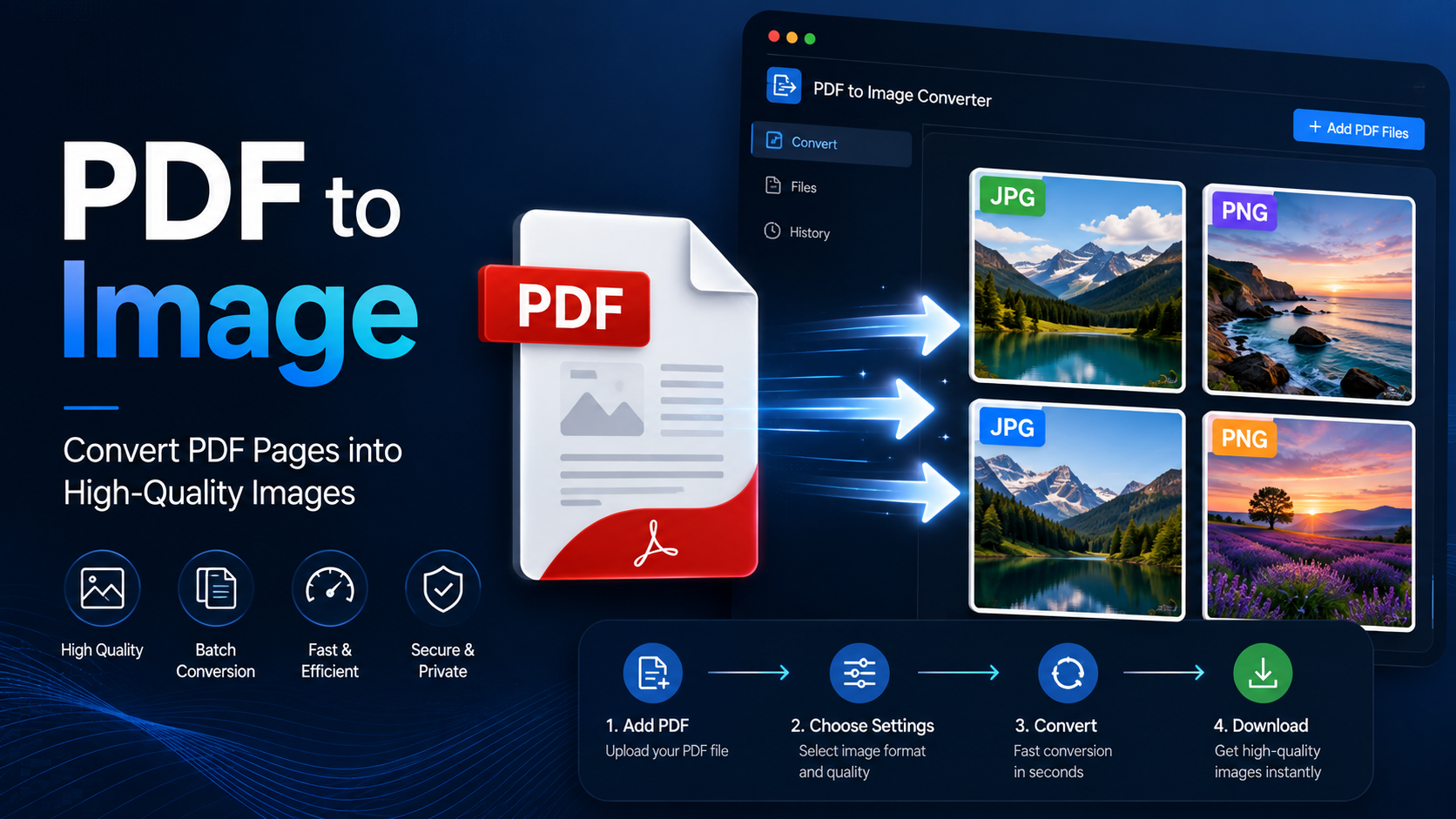
A modern browser-based tool can accept several PDFs at once, including password-protected files when the correct password is supplied. You can convert every page or enter a range such as 1-3, 5. After the pages are rendered, individual images can be previewed and downloaded, while a Download All option can place results in a ZIP with separate folders for each source PDF. Common output choices include PNG, JPG, and WebP, with resolution presets ranging from screen-friendly output to high-detail rendering.
Choosing the Right Settings
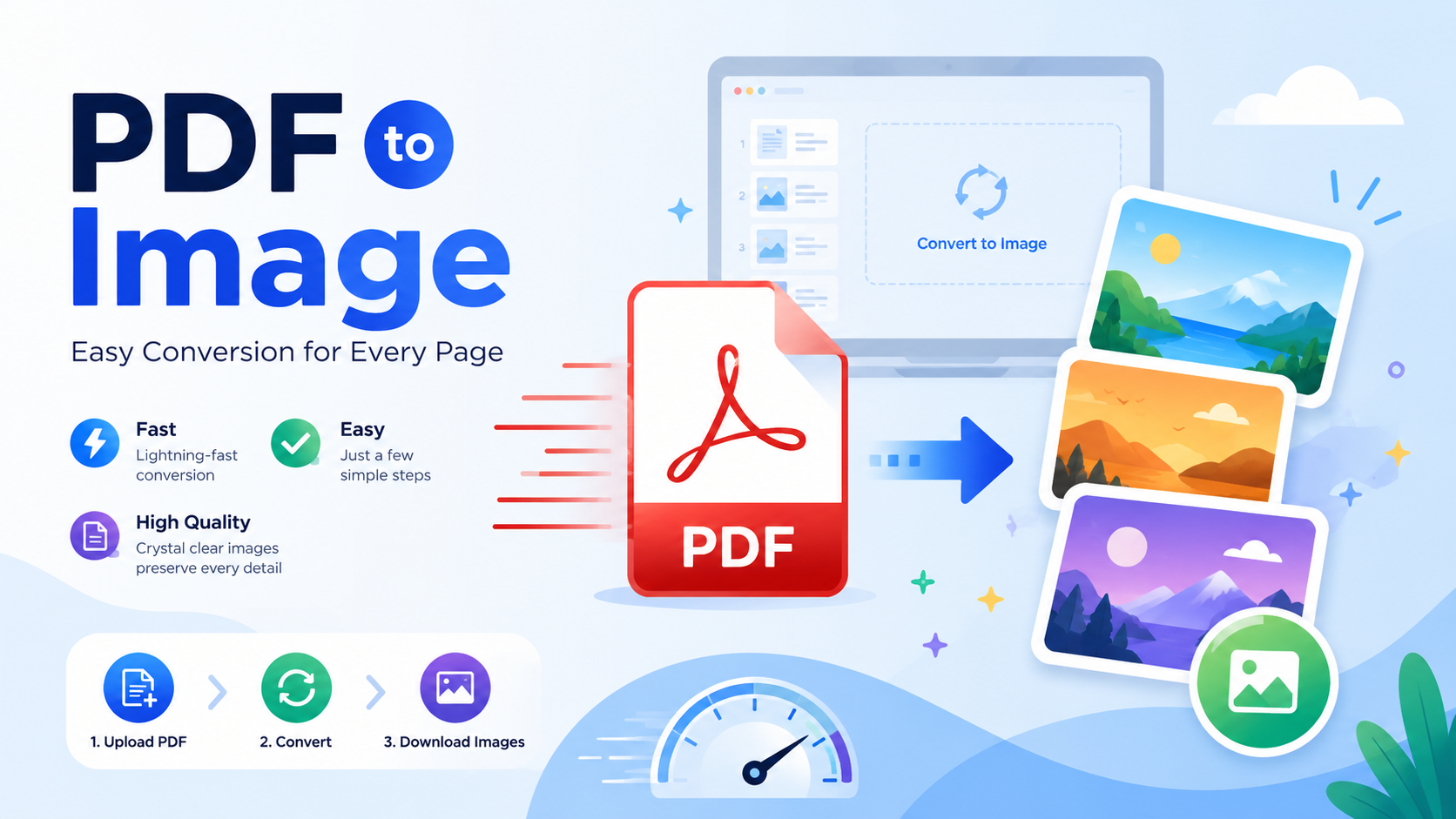
PNG is a strong choice for pages containing text, diagrams, or flat colors because it preserves crisp edges. JPG usually creates smaller files and works well for photographic pages, though aggressive compression may blur small text. WebP offers an efficient balance for websites and modern browsers. Resolution matters just as much: lower DPI is quicker and smaller, while higher DPI is better for zooming, printing, and OCR preparation. Very high resolution also requires more browser memory, so it should be used when the extra detail has a clear purpose.
Privacy, Performance, and Realistic Limits
Privacy deserves attention whenever documents contain personal, financial, educational, or legal information. A client-side workflow keeps source files in the visitor’s browser rather than sending them to the WordPress server. It is still wise to use a trusted computer, close shared sessions, and remove downloaded files when the task is complete.
Practical note: Browser-based tools may avoid artificial file-count limits, but real capacity still depends on file complexity, available memory, device performance, and the quality settings selected.
Best Practices for Better Results
- Convert only the page range you actually need.
- Use PNG for screenshots, diagrams, and text-heavy pages.
- Use JPG or WebP when file size matters more than lossless detail.
- Select higher DPI for print or close zooming, not by default.
- Keep each PDF in its own ZIP folder when processing multiple documents.
Frequently Asked Questions
Will conversion change the original PDF?
No. The process creates new image files and leaves the source PDF unchanged.
Can one page be downloaded separately?
Yes. Page previews normally allow individual downloads in addition to a ZIP containing all results.
Why does a high-DPI conversion take longer?
Each page is rendered with more pixels, which increases processing time, memory use, and output size.
Final Thoughts
The most useful PDF image is not necessarily the largest one. Match the format and resolution to the final destination, and the exported pages will remain clear without creating an unnecessarily heavy download.
The most dependable approach is to work from a clean source, test the settings on a small sample, and review the exported file in the software your audience is likely to use. That simple habit catches layout errors, missing pages, unreadable text, and oversized outputs before they become someone else’s problem.